
How to make banners like this!
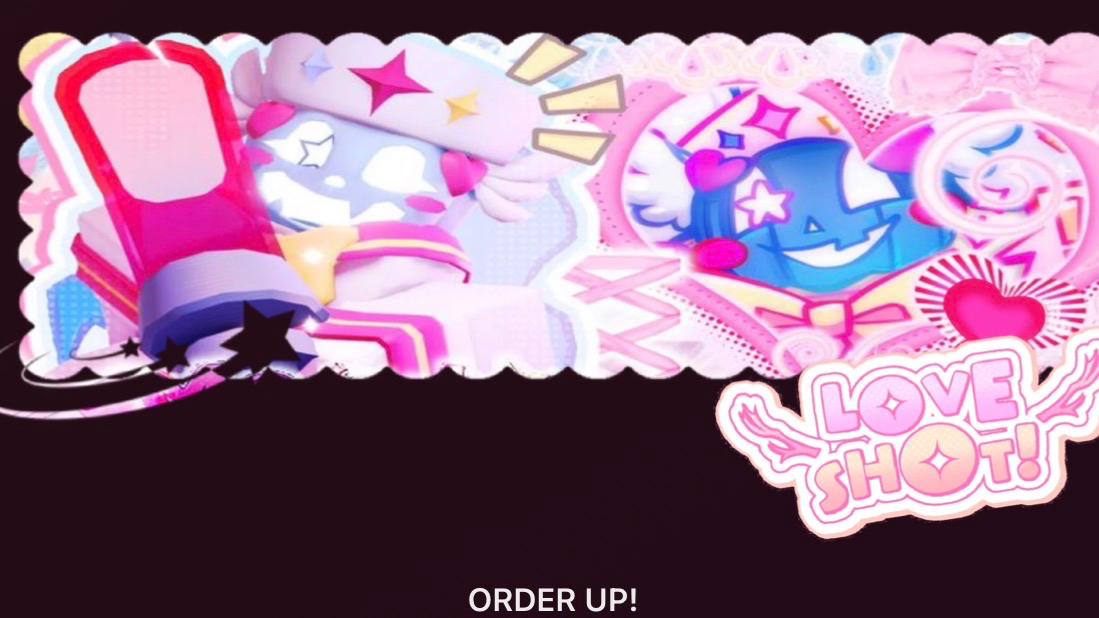
so you wanna spice up your bot :D
First of all, go on Tumbler, Pinterest, anything, and search up your character and “banner”, i personally am going for Two time since i will be making a azuretime angst bot soon
next, look for a banner, most of the time i do ones that the game/show/etc itself already made, but i can make banners if you want :)
(Example)
Then, load up good ol ibisPaint, or if you draw frequently, you could do any other art program, i personally am gonna use ibisPaint cause it’s easy ^_^
First, press on “layers”, and there is a plus button, but that is for later. Your gonna press on the tiny camera button, and after allowing Ibispaint access to your camper roll, resize the image so it fits nicely
You will then add another layer, and press the little arrow button, this is called a “clipping layer”
(You can also resize your image to your liking, and adjust it in any way before pressing clipping mask.)
then, press “merge”, this combines the images!
And then finally, click on the tiny arrow near layers, and press save image! And boom, you have your image in your camera roll, and now can absolutely swag up your bots :D
(Image for anyone wanting to replicate the image! You can also find F2U banners by people, though always make sure to see if the person wants credits or not :D)
For PFPS like this
First, go to Pinterest/tumbler etc, and type “Mask overlay” , “Overlay mask” “PFP mask” etc, and select one you like!
For example!!
Next, go up and load Ibix paint again!
Then, press the 3 dots, and press “White to transparent (color)”!! This removes the white so your image actually goes in the mask PFP
After pressing “White to transparent, it should look something like this after you press the darker squares.
Again , use a clipping mask!
And do the last steps you did for the banner, do it for the PFP mask, and save the image, and KABOOM holy bazooka! Your done :D
(Image i used.)
Created Sep 20
Updated Sep 20
Published Sep 20